

I’ve been seeing “Claude Code” and “vibe coding” all over my feed for weeks. Everyone is talking about building things with AI.
I’m not a developer. I’m a marketer. With no coding knowledge. But I was curious enough to try.
So I did. And in one sitting, I built a WordPress Post Publisher that automated a docx file to the WordPress draft publishing workflow.
Recommended: Watch this walkthrough video to see how I built it step by step.
The Why?
I run marketing at AddSearch. One-person team. I handle campaigns, SEO, blog content, emails, webinars, social, with some external resources.
The blog keeps falling behind. Not because the content isn’t ready. It is. The bottleneck is getting it into WordPress. Formatting headings. Adding links. Uploading images. Saving drafts. It’s repetitive, manual, and it eats time I don’t have.
So I asked myself: can I try using Claude Code to skip the manual part and just push content straight to WordPress without losing the formatting?
I decided to treat it as an experiment.
Brainstorming with Claude Before Touching Claude Code
I didn’t jump straight into Claude Code. I’m not that brave (yet).
I started with regular Claude. Explained my situation:
“I have a WordPress site. I want to automate pushing blog content to WordPress as drafts. I’m not technical. Is this possible without writing a lot of code?”
Claude said yes. Then it gave me clear next steps to open Claude Code and give detailed instructions on what I’m trying to build, what features I require, and how the functionality should be.
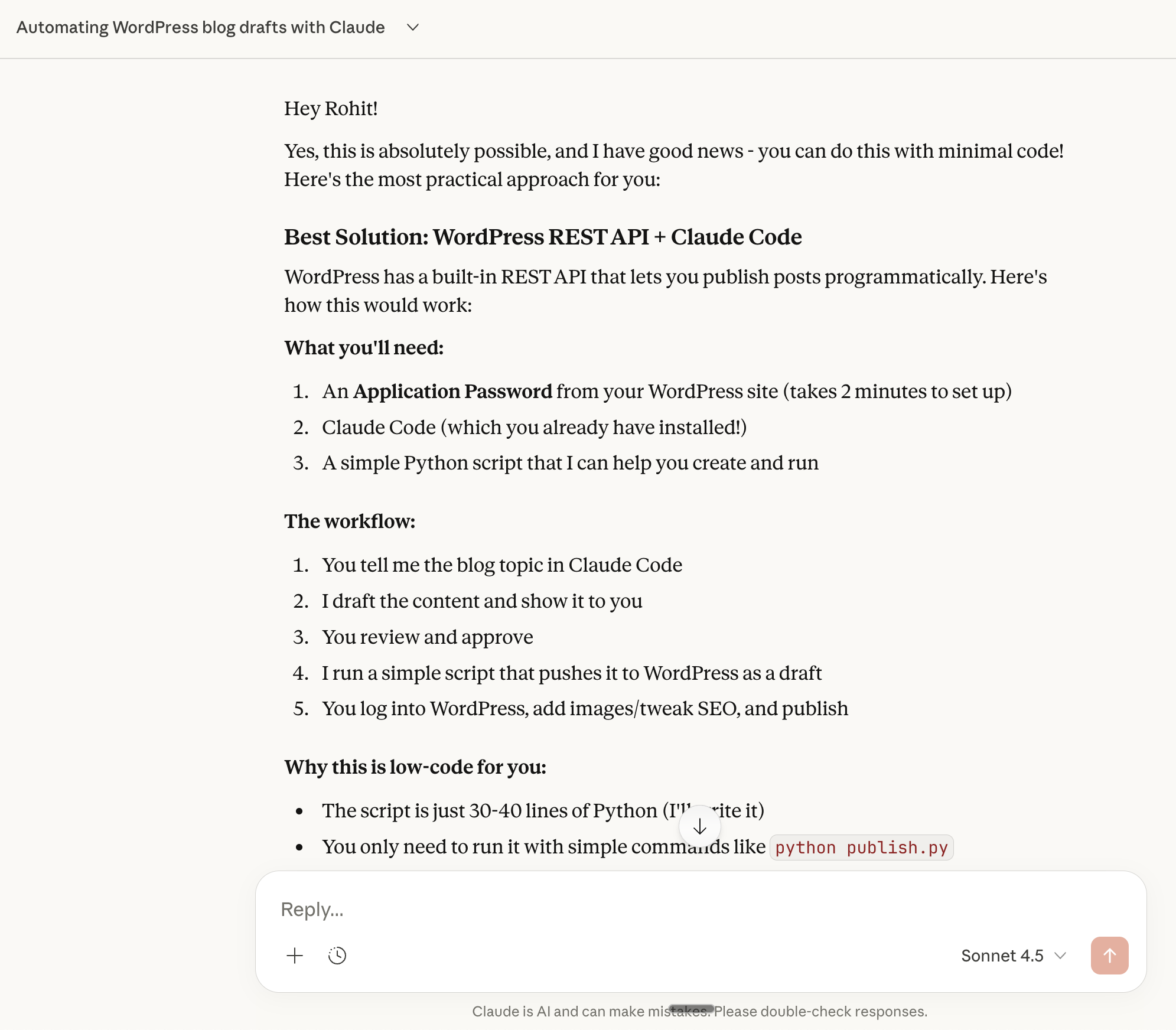
That was it. I then followed the steps it provided for my side project’s WordPress website, Overlappr.
The lesson here? Give Claude clear context. Tell it who you are, what you’re trying to do, and why. The better you explain your situation, the better it helps you.
Getting My Prerequisites Ready
Before I let Claude Code do anything, I needed two things:
A WordPress Application Password. I went to my WordPress admin, Users > Profile, scrolled down, created an Application Password. Took 30 seconds. Done.
A rough list of what I wanted. Nothing fancy. No formal document. Just a mental checklist:
Push content to WordPress via API
Always save as draft (never auto-publish. I’m not that trusting)
Support Word docs and PDF files
Keep headings formatting (H1, H2, H3) intact
Preserve hyperlinks with their anchor text
Extract images and upload them to WordPress
Don’t break the formatting
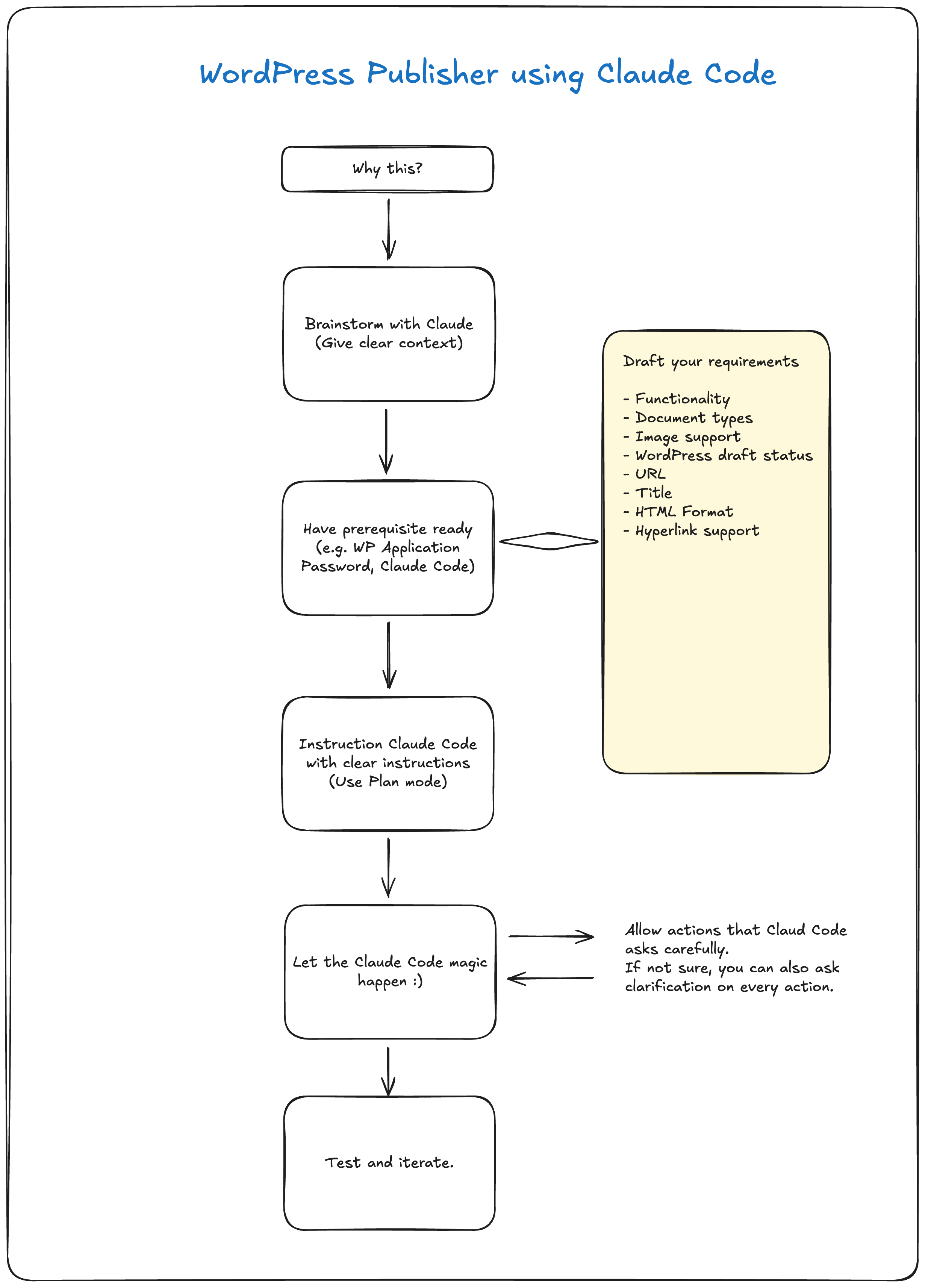
Having this list ready before starting was the move. When you know what you want, the AI knows what to build. When you’re vague, you get vague results. Simple.
Giving Claude Code Instructions. Plan Mode First.
Here’s something I learned that I think is worth sharing.
Claude Code has something called Plan Mode. Instead of jumping straight to writing code, it researches your problem, designs an approach, and shows you the plan first.
Think of it like this: you wouldn’t start renovating your kitchen without looking at the floor plan first.
I used Plan Mode. Claude Code showed me:
What files it would create
How the system would work
What tools it would use
I reviewed it. Asked a couple of questions. Said “looks good.” Then it started building.
This step gave me confidence. I’m not a developer, and I didn’t want to blindly approve things I couldn’t understand. Plan Mode made the whole process feel like a conversation, not a gamble.
The Build. Where Claude Code Did Its Thing.
Once I approved the plan, Claude Code got to work:
Created a Python script for the WordPress connection
Created a config file for my credentials
Installed the packages it needed (automatically)
Asked me for my WordPress username and application password
Updated the config file for me (I didn’t want to touch the code)
Tested the connection to my site
Connection test: passed on the first try.
One thing I appreciated: Claude Code asks for permission before running commands. It doesn’t just go rogue. Every step, it showed me what it was about to do, and I could say yes, no, or “wait, explain that.”
If you’re not sure about something, just ask. It’ll explain. No judgment. It’s literally an AI. It doesn’t get impatient.
Quick Note: Don’t Do This on Your Live Site
I want to pause here because this matters.
If you’re experimenting with any new tool, Claude Code or anything else, use a staging environment. Or at minimum, make sure your automation can’t accidentally publish something to production.
Things break when you’re learning. That’s normal. Just make sure they break somewhere that doesn’t matter.
I also made sure everything was set to draft only. No auto-publishing. Nothing goes live without me manually hitting publish in WordPress.
First Test. A Text Blog Post.
Time to see if this thing actually works.
I gave Claude a topic: “How to Schedule Meetings Across Time Zones.”
It wrote a full blog post. Headings, paragraphs, a CTA at the end, the works. I read through it, made a small tweak, and said: “Push it to WordPress.”
It ran. A few seconds later:
Draft created successfully!
Edit URL: overlappr.com/wp-admin/post.php?post=732&action=edit
I opened WordPress. There it was. Title, formatting, links. All correct. Saved as draft. Ready for me to add images, check SEO, and publish.
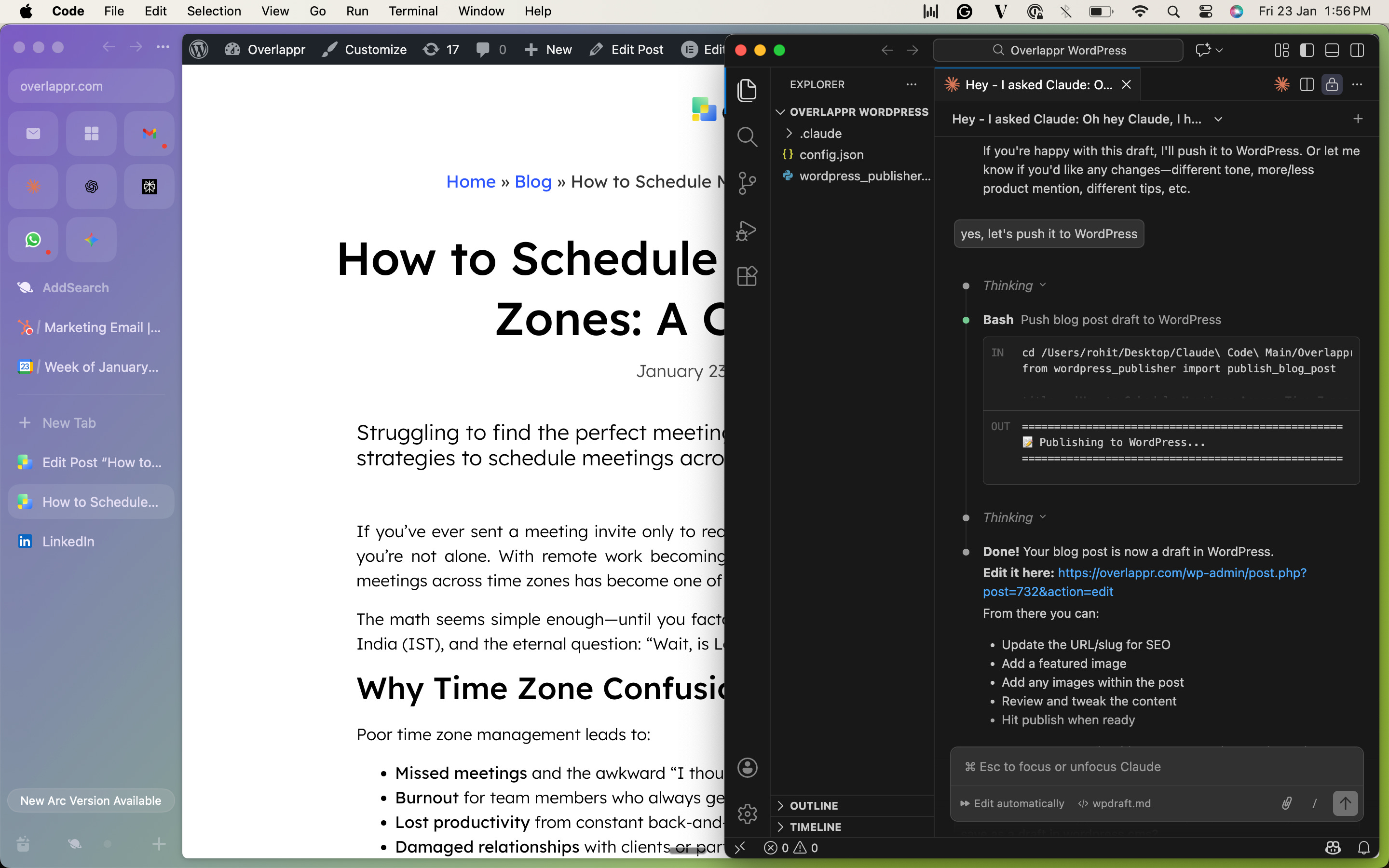
From “give me a topic” to “it’s in WordPress”: one conversation.
I won’t lie, I did a little fist pump.
Making It Repeatable. The Slash Command.
The first test worked. But I didn’t want to explain the whole process to Claude Code every time I had a new post.
So I asked: “Can you create a slash command called /wpdraft that I can reuse?”
It did. Now my workflow is:
I write content (or Claude writes it)
I review the draft
I type
/wpdraftIt’s in WordPress
Three steps. No formatting. No copy-pasting. No uploading images manually.
This is the part where I felt like I actually built something. A tiny automation that saves me real time, every single week.
Note from Claude Code Docs: Custom slash commands have been merged into skills.
Adding Document and Image Support
The text workflow was great. But let’s be real. Most of my blog posts already exist in Google Docs. I wasn’t going to re-type them for Claude.
So I asked: “What about DOCX and PDF files? Can you process those too?”
Claude Code added full document support. And then I asked it to handle images too. Here’s what it does now:
Headings: Extracts H1, H2, H3 hierarchy from the document
Paragraphs: Preserves formatting. Bold, italic, underline.
Hyperlinks: Extracts every link with its correct anchor text (this was important to me)
Tables: Converts them to proper HTML tables
Images: Pulls them out of the document and uploads them to WordPress Media Library
All automatic. All from one slash command.
Testing With a Real Document
Theory is nice. Let’s see it work.
I had a real blog post ready: “Top 7 Chrome Extensions for Google Calendar.” A docx file with images, links, headings, the full package.
I shared the file. Typed /wpdraft.
Claude Code processed it:
Extracted 3 images
Uploaded all 3 to WordPress Media Library
Preserved all hyperlinks with anchor text
Converted all headings correctly
Created the draft in WordPress
I opened WordPress. Everything was there. The images. The links. The formatting. All sitting in my drafts, waiting for me to add a featured image and hit publish.
That was the moment it went from “cool experiment” to “I’m going to use this every week after some rigorous testing.”
What My Workflow Looks Like Now
When I want Claude to write:
Me: “Write a blog post about [topic]”
Claude: writes draft
Me: reviews, gives feedback
Me: /wpdraft
Done.
When I already have a document:
Me: shares .docx file or .pdf file
Me: /wpdraft
Done.
Next, I open WordPress, add a featured image, verify SEO settings, and publish. The formatting grunt work? Gone!
Three Things I’d Tell You Before You Try This
1. Start with staging. Not production. Seriously.
I know I already said this, but it’s worth repeating. When you’re experimenting with new tools, things will break. Maybe not today, maybe not tomorrow. But eventually, something won’t work the way you expect. Make sure it breaks somewhere safe.
2. Starting is easier than you think. But give yourself room to learn.
You don’t need to be a developer. You don’t need to “understand Python.” You need to open Claude Code, explain what you want, and follow along. That said, watch a few YouTube videos, attend Claude Code 101 webinars, read the docs a bit. You’ll pick it up faster than you expect. But don’t wait to feel “ready.” You’ll learn more in one real session than in ten hours of reading about it.
3. Look at your own daily work. That’s where the opportunities are.
Don’t start by asking “what can AI do?” That’s too broad. Instead, look at your week. What do you keep doing manually? What tasks feel the same every time? What’s boring but necessary?
That’s your starting point. For me, it was getting blog content into WordPress. For you, it might be formatting reports, sending follow-up emails, or pulling data from spreadsheets. The pattern is the same: if you do it repeatedly and manually, there’s probably a way to automate it.
That’s it. Simple conversational flow, no code written by me, and the most annoying part of my content publishing workflow is handled.
If you’re a non-technical person like me, wondering if tools like Claude Code are worth trying, they are. Pick one small, boring, repetitive task. See what happens.
Worst case, you learn something. Best case, you get your Groundhog Day moment to stop repeating.
Super helpful!